From Chaos to Clarity in Minutes

See how Schedule Caddie brings all your children's team schedules into one unified calendar. No more juggling multiple apps, emails, and websites.

Meet the Martinez Family (Example)

Follow along as we show how the Martinez family—with Emma (12, soccer and hockey), Jake (10, basketball), and Lily (8, gymnastics)—organizes all three kids' schedules in one place.

1

Create Your Account

Sign up with your email. No credit card required. Just create your account and you're ready to start organizing your family's schedule.

The Martinez family:

Sarah Martinez signs up with her email address, verifies it in seconds, and is immediately ready to start adding her kids' teams.

Schedule Caddie signup and onboarding
2

Add Kids & Teams

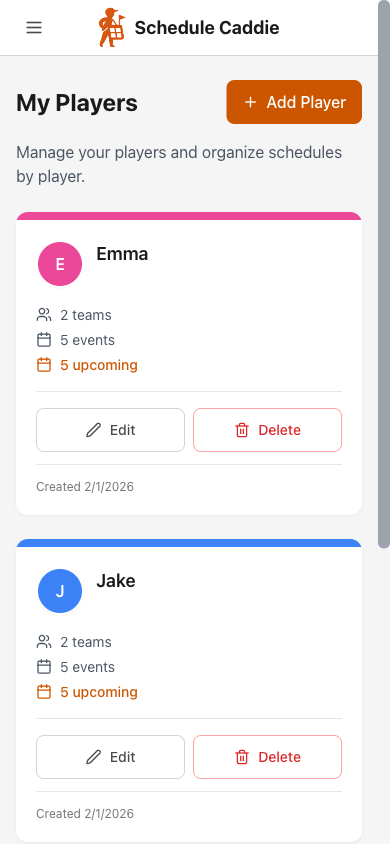
First, add your kids. Then create teams with their actual team names and assign each team to a kid. Pick colors to make your calendar easy to scan at a glance.

Your Kids:

Emma
Jake
Lily

Their Teams:

Wildcats U12 Soccer

Assigned to Emma

Thunderbirds Hockey

Assigned to Emma

Rockets 10U Basketball

Assigned to Jake

Starz Gymnastics

Assigned to Lily

The Martinez family:

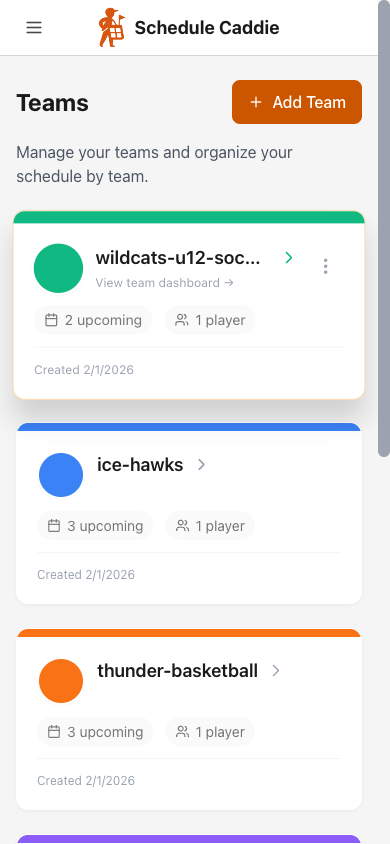
Sarah adds her three kids: Emma (rose), Jake (amber), and Lily (purple). Then she creates their teams using the actual team names—Wildcats U12 Soccer, Thunderbirds Hockey, Rockets 10U Basketball, and Starz Gymnastics—and assigns each to the right kid. The colors help her instantly see whose event she's looking at on the calendar.

Teams page showing all teams with upcoming events
3

Import Schedules

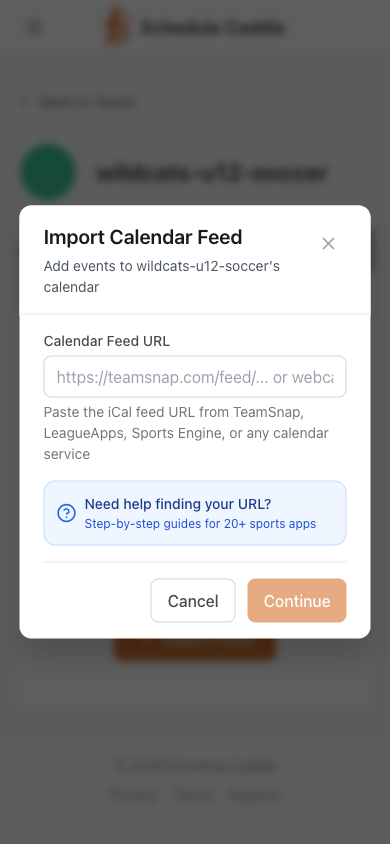
For each team, click "Add Feed" and bring in the schedule. Schedule Caddie works with whatever format your team uses:

Calendar Feed URL

Copy the calendar feed link from TeamSnap, SportsEngine, LeagueApps, or any platform that provides an ICS/iCal/webcal feed. Paste the URL into Schedule Caddie.

Works With All Major Platforms

Most team management platforms have an "Export to Calendar" or "Subscribe" option. Look for the calendar feed URL in your team's settings and paste it into Schedule Caddie.

AI-Powered Analysis

Our AI analyzes your calendar feed and automatically detects team names, event types (games, practices, tournaments), and extracts locations and other details from your events.

The Martinez family:

Sarah imports the Wildcats soccer schedule by pasting the TeamSnap calendar feed URL. For Jake's basketball, she gets the calendar URL from the league website. The AI detects team names like "Wildcats U12 Girls" and "Rockets 10U" from the events.

Import calendar feed modal showing URL input
4

Confirm Team Mappings

The AI shows you what team names it found in your import. You simply confirm which of your teams each one belongs to. This mapping only needs to happen once—the system remembers for all future syncs.

Example Mapping:

Detected: "Wildcats U12 Girls"

Found in TeamSnap feed

Wildcats U12 Soccer

Detected: "Rockets 10U"

Found in league calendar feed

Rockets 10U Basketball

The Martinez family:

Sarah confirms: "Wildcats U12 Girls" maps to her "Wildcats U12 Soccer" team, and "Rockets 10U" maps to "Rockets 10U Basketball". She only does this once — all future feed updates will automatically use these mappings.

Team dashboard showing team overview and events
5

Review & Approve Changes

Before any events appear on your calendar, you see exactly what's about to be added. Review the list, approve all at once, or review each event individually. You're always in control of what appears on your calendar.

You're Always in Control

Nothing changes on your calendar without your approval. Review what's being added, check dates and times, and approve when you're ready.

The Martinez family:

Sarah sees a summary: "23 events ready to import for Wildcats U12 Soccer". She quickly scans the list—practices on Tuesdays, games on Saturdays—and clicks "Approve All". The events instantly appear on her calendar.

Calendar week view showing events ready for review
6

Enjoy Your Unified Calendar

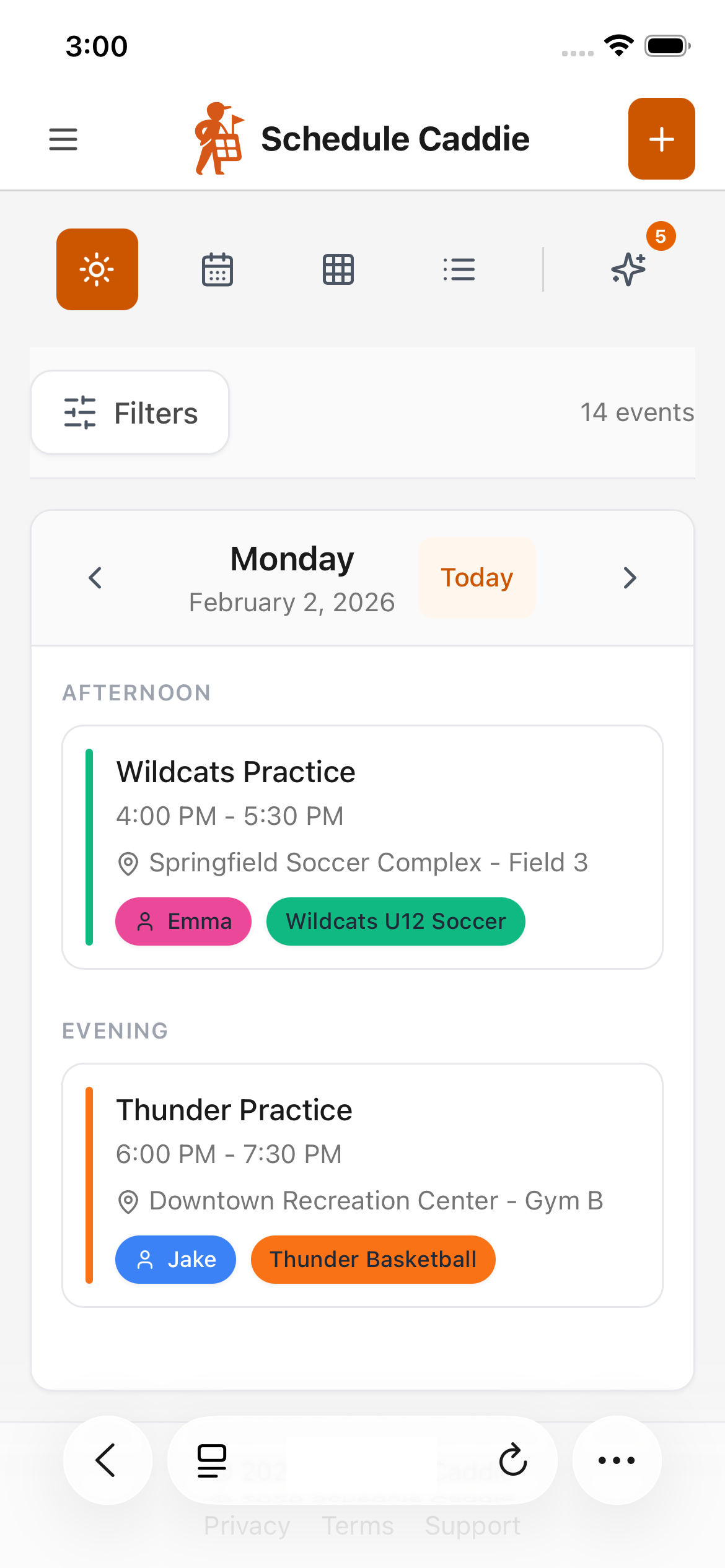
Now all your children's schedules are in one place, beautifully organized and easy to navigate. Everything you need to stay on top of your family's activities.

Color-Coded by Team

Instantly see which team an event belongs to. Teams are color-coded and assigned to kids, so it's obvious who has what.

Multiple Views

Switch between month view (see the big picture), week view (plan your week), and agenda view (chronological list).

Smart Filtering

Filter by kid, team, or event type. Focus on just Emma's events, or hide practices to see only games.

Quick Search

Type to instantly find any event. Search by team name, location, or event description.

The Martinez family:

Sarah opens her calendar and sees everything at a glance. On Saturday, Emma has a hockey game at 9 AM (indigo) and a soccer game at 2 PM (rose). Jake's basketball practice is at noon (amber). She filters to show only games and reviews the week ahead.

Unified calendar month view with color-coded events for all teams

Ongoing: Automatic Updates

Once your feeds are set up, Schedule Caddie keeps your calendar in sync automatically. No manual work required.

Daily Automatic Refresh

Your feeds check for updates daily. When schedules change at the source (TeamSnap, SportsEngine, league website, etc.), Schedule Caddie detects it automatically. Need it sooner? You can refresh on-demand—and changes still require approval before they appear.

Change Notifications

When changes are detected, you get notified—so you know as soon as Schedule Caddie spots it.

Review Before Applying

Just like the initial import, you review and approve changes before they appear on your calendar. You stay in control of what's added, updated, or removed.

Set It and Forget It

After initial setup, your calendar maintains itself. No more checking multiple websites, re-entering changed game times, or wondering if you have the latest schedule. Schedule Caddie keeps everything current automatically.

The Martinez family:

Three weeks later, the Wildcats soccer coach changes Saturday's game time from 2 PM to 4 PM in TeamSnap. That night, Schedule Caddie detects the change and notifies Sarah. She reviews it, approves the update, and her calendar instantly reflects the new time. She never had to check TeamSnap or manually update anything.

Set It Up in Under 5 Minutes.

Paste your feeds, confirm teams once, and you're done.

No credit card required.